

Scheduled Tasks
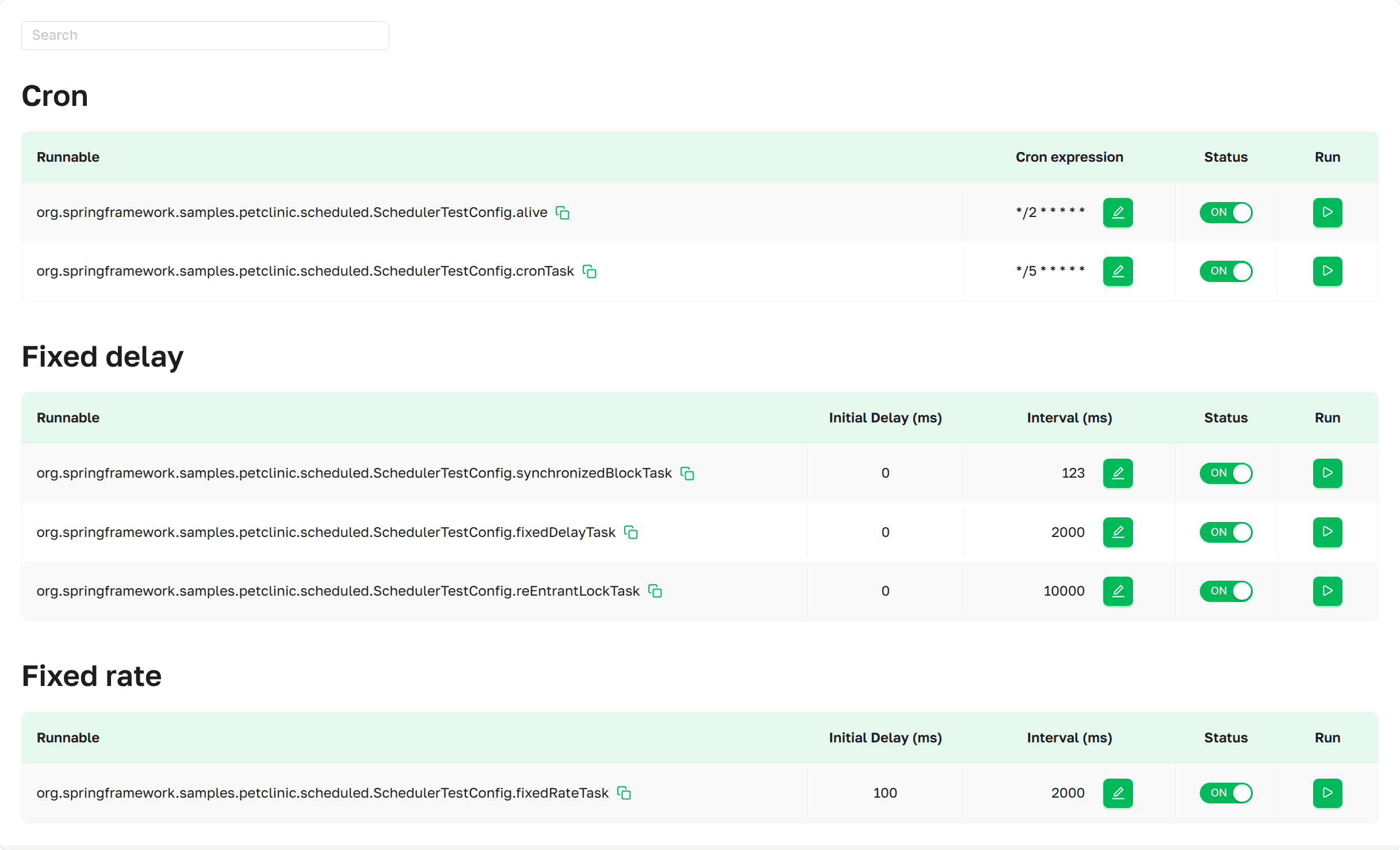
The Scheduled Tasks page provides access to all tasks annotated with @Scheduled within a Spring Boot application. You can also update the task status, modify its schedule, and trigger it manually when required.
 Scheduled Tasks
as presented in Axelix UI
Scheduled Tasks
as presented in Axelix UI
A scrollable list displaying all configured Scheduled Tasks in the application, grouped by property types: fixed
delay, fixed rate and cron, with a search function for scheduled tasks to enable easy navigation.
Scheduled Tasks Details
Cron
 Scheduled
Tasks as presented in Axelix UI
Scheduled
Tasks as presented in Axelix UI
A scheduled task with an exact execution configuration.
- Runnable: The target that will be executed.
- Cron expression: The cron expression (e.g., "0 1 1 5 7 3" or "0 0/15 9-17 ? * MON,WED,FRI" (seconds minutes hours day_of_month month day_of_week)) (See Interactive Features)
- Status: Shows the target state and provides the ability to enable
 or disable
  the target. (See
Interactive Features)
the target. (See
Interactive Features) - Run: Forces immediate execution of the task. (See Interactive Features)
Fixed delay
 Scheduled Tasks as
presented in Axelix UI
Scheduled Tasks as
presented in Axelix UI
Schedules Tasks with the interval between completing tasks, counted from the end of the previous task.
- Runnable: The target that will be executed.
- Initial Delay (ms): The delay, in milliseconds, before first execution.
- Interval (ms): The interval, in milliseconds, between the start of each execution. (See Interactive Features)
- Status: Shows the target state and provides the ability to enable or disable the target. (See
Interactive Features)
- Run: Forces immediate execution of the task. (See Interactive Features)
Fixed rate
 Scheduled Tasks as
presented in Axelix UI
Scheduled Tasks as
presented in Axelix UI
Schedules Tasks with the interval between completing tasks, counted from the start of the previous task.
- Runnable: The target that will be executed.
- Initial Delay (ms): The delay, in milliseconds, before first execution.
- Interval (ms): The interval, in milliseconds, between the start of each execution. (See Interactive Features)
- Status: Shows the target state and provides the ability to enable or disable the target. (See
Interactive Features)
- Run: Forces immediate execution of the task. (See Interactive Features)
Interactive Features
The actions below — running a task on demand, modifying its schedule, and toggling its status — require the
SCHEDULED_TASKS_MODIFY authority, granted by the built-in EDITOR, ADMIN, and SUPER_ADMIN roles. Users
without this authority see the same controls but cannot interact with them.
When a control button is visible but your account lacks this authority, Axelix keeps it disabled and shows a tooltip with the corresponding message on hover.
Run
We provide the ability to trigger a task manually without affecting its schedule. To do so, simply click  , and the task will be executed
immediately.
, and the task will be executed
immediately.
Interval/Cron expression
You have a convenient way to modify the interval and cron expression of a scheduled task in real time.
- Click
 next to the
schedule you want to modify.
next to the
schedule you want to modify. - An interactive dialog will open, allowing you to make changes. When you edit a cron expression, the dialog shows a
live Valid / Invalid indicator next to the input — it updates on every keystroke against the same validator
the backend uses, and the save action stays disabled until the expression is valid. After making changes, click the
 to cancel the change, or the
 to confirm the action.
 - Once confirmed, the task will follow the new schedule.
Status
We provide the ability to manage the target state. The initial state of each target is (on) , meaning the task is executed
according to the configured schedule. When the Status is switched to (off) , a target that is currently
executing its scheduled work continues until completion and then ignores the schedule. To return the target to its
initial state, in which the task follows the scheduled execution, it is necessary to switch the Status back to (on)
.
MCP Tools
Scheduled tasks can also be inspected by an AI agent through MCP — see the MCP Tools catalog.
Enable Dedicated Actuator Endpoint
If you are on Axelix 1.2.0 or later, none of this is required: the starter registers its custom actuator endpoints by itself, and Axelix no longer requires the health/info endpoints to be enabled — it works perfectly well without them. No configuration is needed here.
The page is backed by the axelix-scheduled-tasks actuator endpoint contributed by the Axelix Spring Boot Starter.
Expose it through the standard Spring Boot Actuator properties — see Configuring Spring Boot
Starter for the full list
of Axelix endpoints and surrounding setup:
management.endpoints.web.exposure.include=axelix-scheduled-tasks